
V2sub 2.0.2 Last Updated: 2026-10-14
Quick Start Guide: Task Queue & One-Click Pipeline
Master the V2sub 2.0 Task Queue in 5 minutes: adding videos/folders, choosing source/target languages, and enabling auto-dubbing & video muxing.
V2sub 2.0 Task Queue Overview
When you launch V2sub 2.0 with at least one Whisper model installed, you start on the Task Processing → Task Queue screen:
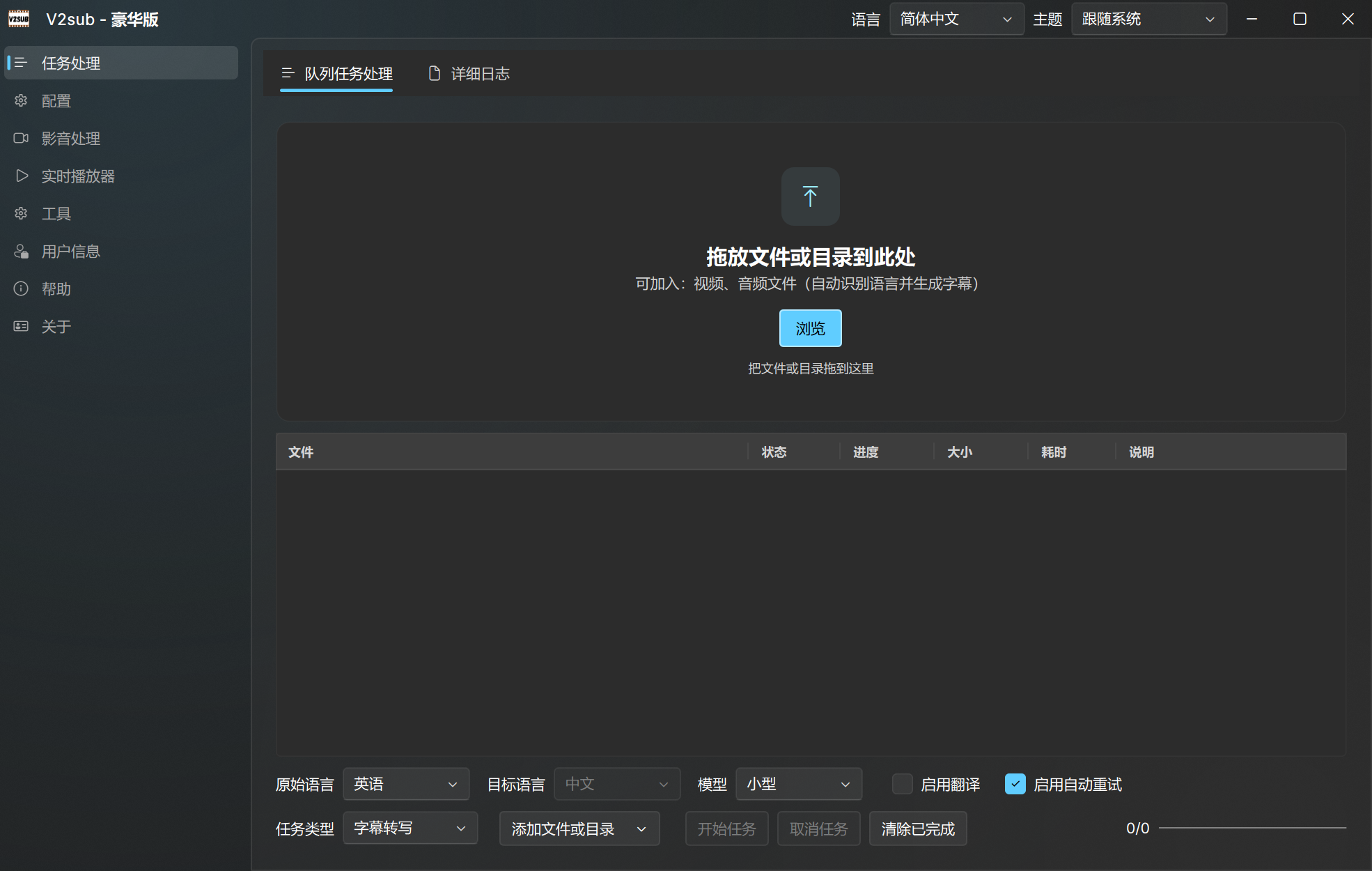
5 Steps to Generate & Translate Subtitles
- Add Files or Folders: Drag and drop video files (MP4, MKV, MOV, AVI, FLV), audio files (MP3, WAV — Pro+), or subtitle files (SRT, ASS, VTT — Pro+) directly into the window, or click Add File / Add Folder.
- Select Model & Source Language: Choose an installed Whisper model (e.g.,
mediumorlarge-turbo) and specify the spoken language in the video. - Select Target Translation Language: Choose No Translation if you only want same-language transcription, or pick your target language (e.g., Simplified Chinese, English, Japanese).
- Optional One-Click Dubbing & Video Muxing (Ultra Edition): Toggle Auto Voice Synthesis and Auto Video Muxing to automatically generate time-aligned TTS audio and burn subtitles into the final video using your saved templates.
- Click Start: Watch real-time progress in the queue and click Open Directory when finished to access your
.srt,_merge.srt, audio, and final video files!